Introduction
Managing an online store requires regular updates to product listings, including changing product details, updating prices, adjusting inventory, modifying descriptions, and organizing products into collections. For store owners, the ability to access and edit product listings smoothly is essential to keeping their business running. However, sometimes a website may behave unexpectedly, even when the store owner has not made any changes to the system or settings.
A Shopify store owner recently experienced an unusual issue while trying to edit product listings. Around 10:15 AM EDT on September 18, 2025, the product listings on their store administration page appeared grayed out, making the editing experience look unusual and potentially suggesting that something was wrong. The issue lasted only two to three minutes and then disappeared automatically, allowing the store to function normally again.
Although the problem was temporary, unexpected changes in the appearance or functionality of a store’s product management area can create confusion. Store owners may wonder whether their products have been locked, whether their account is experiencing technical problems, or whether they need to take immediate action to restore access.
Temporary website issues are not always caused by something the user has done. They may occur because of short-lived technical interruptions, browser-related problems, or temporary loading errors. Understanding the possible causes and knowing what to do when such a situation occurs can help store owners avoid unnecessary stress and manage their stores more confidently.
What Happened to the Product Listings?
The issue occurred while the store owner was attempting to edit product listings within the store’s administrative interface. Instead of displaying the usual active appearance, the product listings appeared grayed out.
When product listings or interface elements appear faded, users may interpret this as a sign that the items are disabled, unavailable, locked, or temporarily inaccessible. In an online store management environment, this appearance can be particularly concerning because products are an important part of daily business operations.
Product editing is generally used for tasks such as:
- Updating product titles and descriptions.
- Changing product prices and compare-at prices.
- Modifying inventory quantities.
- Uploading or replacing product images.
- Changing product availability.
- Updating product options and variants.
- Adjusting product organization and categories.
When the interface looks different from its usual appearance, users may not immediately know whether the problem affects their ability to make changes or whether the system is simply experiencing a visual interruption.
In this particular situation, the problem was short-lived. The product listings appeared grayed out for approximately two to three minutes, after which the normal appearance and functionality returned.
The store owner did not need to perform any troubleshooting actions to resolve the problem. The store appeared to be working normally once the temporary issue disappeared.
This suggests that the incident was likely a brief interruption rather than a persistent problem with the store’s products or configuration. However, the exact cause was not confirmed.
Why Do Product Listings Sometimes Appear Grayed Out?
When a website interface suddenly changes its appearance, several technical factors may be responsible. The visual appearance of grayed-out product listings does not necessarily mean that the products themselves are unavailable or that the store has been permanently affected.
1. Temporary Server-Side Issues
Websites rely on servers to process information, load pages, retrieve product details, and perform administrative actions. When a server experiences a temporary interruption, some parts of a website may not load or respond as expected.
The product management area of an online store may rely on several background processes to display information and enable editing. If one of these processes temporarily fails, the interface might appear incomplete, faded, or unresponsive.
A brief server-side interruption could potentially cause:
- Product information to load slowly.
- Buttons or editing controls to become temporarily inactive.
- Product listings to appear visually different.
- Pages to display incomplete information.
- Temporary delays in administrative actions.
These problems may resolve automatically once the server or affected service begins responding normally again.
In the reported incident, the issue disappeared after only a few minutes. A temporary server-side problem is one possible explanation, but there was no confirmed evidence that the server was responsible.
2. Browser Cache or Temporary Browser Data
Browsers store temporary website information to improve loading speed and reduce the need to download the same content repeatedly. This information may include images, page resources, scripts, and other data.
While browser caching usually improves performance, cached information can sometimes become outdated or conflict with the latest version of a website.
If the browser is loading outdated resources, the website may not display correctly. Certain interface elements could appear faded, buttons may not respond, or sections may behave unexpectedly.
For example, a store management page might have recently received an update, but the browser could still be attempting to load older resources. This mismatch may result in unusual visual behavior.
Clearing temporary browser data may help when such issues occur repeatedly. However, it is generally unnecessary to clear the cache immediately if the problem disappears on its own and the website is functioning normally.
3. Browser-Specific Compatibility Problems
Different browsers may handle website features, scripts, rendering, and background processes differently. Although modern websites are designed to work across commonly used browsers, occasional compatibility problems can occur.
A particular browser version may experience a temporary rendering issue, especially when a page contains multiple interactive elements.
Browser-specific problems may affect:
- The appearance of buttons and controls.
- Product editing interfaces.
- Page loading and rendering.
- Interactive menus.
- Form submission and data entry.
If a store owner notices that the same issue continues in one browser, testing the website in another browser can help determine whether the problem is limited to the original browsing environment.
The reported store owner was using a desktop computer running Windows 11 with a commonly used browser. However, the issue was not investigated further because it resolved quickly.
Why Did the Problem Resolve Itself?
One of the most interesting aspects of this incident is that the problem disappeared without any manual intervention.
Temporary website problems can sometimes resolve themselves when a background process finishes, a failed request is retried, a connection stabilizes, or the website refreshes the information it needs.
Several possible explanations may account for the automatic recovery.
Background Processes Completed Successfully
Some website interfaces depend on background processes that continue working after a page initially loads. If a process is delayed, the interface may temporarily appear inactive.
Once the process completes successfully, the page may return to its normal state.
Temporary Connection Interruption
A short interruption in communication between the browser and the website may affect how certain elements are displayed. When the connection stabilizes, the browser may receive the information it needs to restore normal functionality.
Automatic Page or Interface Refresh
Some websites automatically refresh information or update individual interface components without requiring users to reload the entire page.
If a temporary loading problem occurs, a subsequent refresh of the interface may restore the normal appearance of the product listings.
Temporary Technical Glitch
Not every website problem has a clearly identifiable cause. Sometimes a minor technical glitch affects a small part of a website for a short period and disappears before it can be investigated.
Because the incident lasted only a few minutes and no screenshot or technical information was recorded, it is not possible to determine which explanation was responsible.
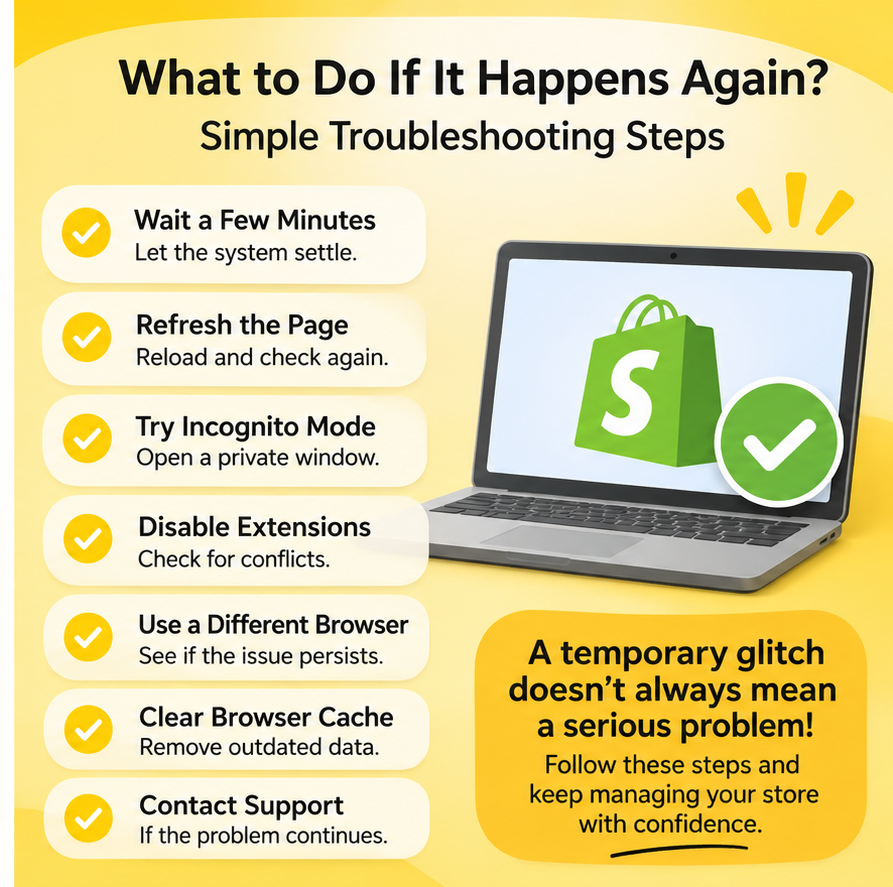
Troubleshooting Steps to Follow if the Problem Happens Again
Even though the reported issue resolved itself, store owners should know how to respond if product listings appear grayed out again or if the editing area becomes unresponsive.
The following steps can help identify and resolve common browser-related issues.
Step 1: Wait a Few Minutes
If the problem appears suddenly, the first step is to avoid making unnecessary changes.
Wait for a few minutes and observe whether the interface returns to normal. A brief interruption may resolve itself without requiring additional action.
During this time, avoid repeatedly clicking buttons or submitting changes because the page may be processing a request in the background.
If the interface is unresponsive, repeated actions may create confusion about whether an update was successfully completed.
Step 2: Refresh the Page
If the product listings remain grayed out, refreshing the page may help reload the interface and its associated resources.
Before refreshing, check whether any unsaved product changes are being made. If a product description, price, or other information is currently being edited, ensure that the changes are saved or copied somewhere safe.
After refreshing, reopen the product management area and check whether the listings are displayed normally.
Step 3: Test in Incognito or Private Browsing
Private browsing provides a separate browser session that generally does not use the same active browsing history, stored session data, or standard extension configuration as the normal browsing window.
Opening the store’s administrative interface in a private browsing session may help determine whether the problem is related to the normal browsing environment.
If the product listings work normally in private browsing, the issue may be related to stored browser data, browser extensions, or session-related settings.
This is a useful diagnostic step because it allows the store owner to compare the website’s behavior without changing the existing browser configuration immediately.
Step 4: Disable Browser Extensions
Browser extensions can modify website content, interfere with scripts, block certain resources, or affect how websites display information.
Extensions related to privacy, advertising, page modification, security, or productivity may occasionally interfere with website functionality.
If the problem continues, temporarily disabling extensions can help identify whether one of them is responsible.
Store owners should disable extensions carefully and test the website again. If the issue disappears, extensions can be re-enabled one at a time to identify the possible source of the problem.
It is not necessary to permanently remove every extension. The goal is simply to determine whether an extension is contributing to the unusual behavior.
Step 5: Try a Different Browser
Testing the store in another browser can help identify whether the problem is limited to the original browser.
For example, if product listings appear grayed out in one browser but work normally in another, the issue may be related to the original browser’s settings, extensions, cache, or version.
This comparison can help narrow down the source of the problem without affecting product data or store configuration.
Step 6: Clear Browser Cache
If the issue continues, clearing the browser’s cached data may help remove outdated resources that could be interfering with the website.
Store owners should understand that clearing browser data may affect other websites as well, depending on which data is selected for removal.
It is generally advisable to clear cached images and files first rather than deleting all browsing data unnecessarily.
After clearing the cache, reopen the store’s administrative interface and check whether the product listings display correctly.
Step 7: Contact Support if the Issue Continues
If the product listings remain grayed out, the editing area continues to behave unexpectedly, or similar problems occur frequently, contacting the platform’s support team may be the most appropriate next step.
Support teams may be able to investigate technical issues that cannot be diagnosed through ordinary browser troubleshooting.
When reporting the problem, store owners should provide useful information, such as:
- The date and approximate time when the issue occurred.
- A description of what appeared on the screen.
- The browser being used.
- The operating system.
- Whether the problem affected all product listings or only certain items.
- Whether refreshing the page resolved the problem.
- Whether the issue also occurred in another browser.
Screenshots or screen recordings can also be useful when the problem is still occurring. Visual evidence helps support teams understand what the user experienced.
Why Recording Temporary Issues Is Important
Even when a problem disappears quickly, recording basic information about the incident can help if it happens again.
A short note describing the date, time, affected page, and behavior can make future troubleshooting easier. If the same issue occurs repeatedly, these notes may reveal a pattern.
For example, recurring problems might occur during specific activities, after certain updates, or when particular browser extensions are enabled.
Capturing a screenshot when possible can also provide useful evidence. In the reported incident, no screenshot was captured because the issue lasted only two to three minutes.
Although this was understandable, documenting similar incidents in the future could help identify whether the problem is isolated or recurring.
Store owners should also distinguish between visual problems and actual data problems. A product listing that appears grayed out does not automatically mean that product information has been deleted, inventory has changed, or the product has been disabled.
Before making major changes, verify the product’s actual status and information.
How Store Owners Can Prevent Similar Problems
Temporary technical issues cannot always be prevented, but a few good practices can help reduce their impact.
- Keep the browser updated: Using an up-to-date browser can help improve compatibility and performance.
- Use fewer unnecessary extensions: Extensions that modify website behavior can occasionally create conflicts.
- Avoid excessive simultaneous actions: Performing multiple editing tasks at the same time may make it harder to identify the source of an issue.
- Save changes regularly: Saving product information before encountering a technical interruption can reduce the risk of losing unsaved work.
- Monitor recurring issues: Recording repeated problems can help identify patterns and support more effective troubleshooting.
- Maintain a stable internet connection: A reliable connection helps the browser communicate with website services consistently.
- Check the actual product status: Do not assume that a visual change means the product has been disabled or removed.
These practices can make product management more reliable and reduce the stress associated with unexpected website behavior.
Conclusion
The temporary grayed-out product listings issue experienced by a Shopify store owner on September 18, 2025, demonstrates how a website can occasionally behave unexpectedly without requiring any major intervention. The problem appeared around 10:15 AM EDT, lasted approximately two to three minutes, and resolved itself automatically.
The exact cause was not confirmed. Possible explanations include a temporary server-side interruption, browser cache-related problems, or a browser-specific issue.
For store owners, the most important takeaway is to remain calm and avoid making unnecessary changes when a temporary interface problem occurs. Waiting briefly, refreshing the page, testing in private browsing, disabling extensions, trying another browser, or clearing cached data can help if the issue persists.
If the problem becomes recurring or affects important store operations, documenting the incident and contacting support can help identify the underlying cause.
A temporary visual glitch does not necessarily indicate a serious store problem. A systematic troubleshooting approach can help store owners restore normal functionality and continue managing their product listings confidently.



0 Comments